
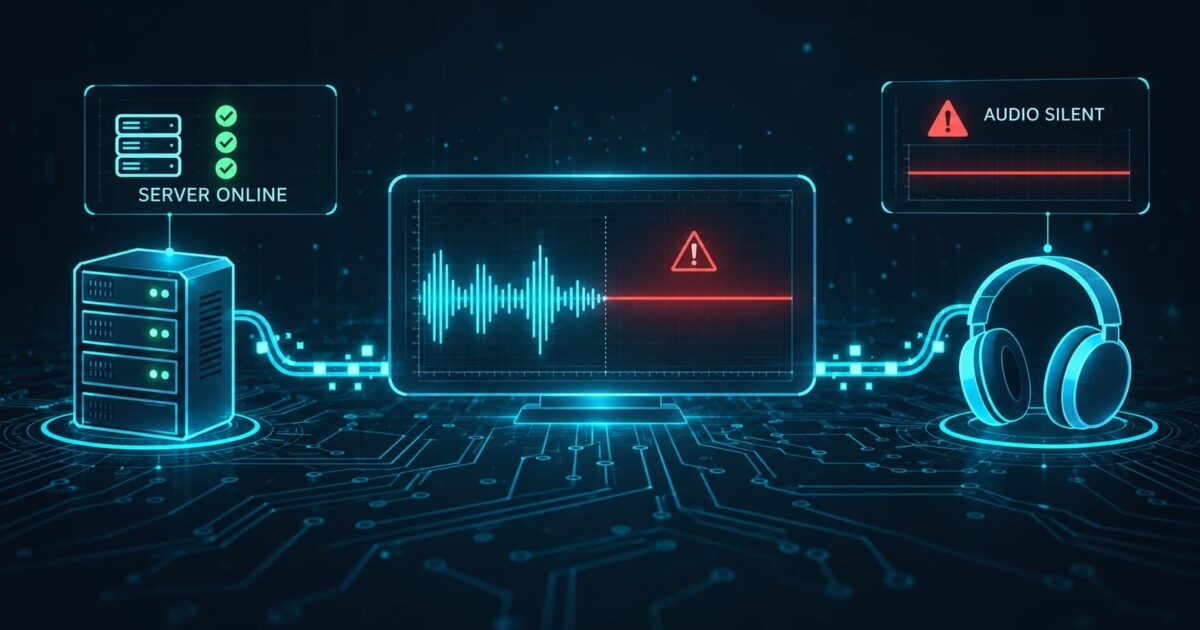
A listener emails at 2 a.m. to say your stream has been quiet for an hour. You open the Icecast status page and everything is there. The mount is listed, source_ip is the studio encoder, the bitrate says 128, and a few dozen listeners are connected. The script that polls /status-json.xsl every minute has not sent a single alert.
Icecast reported exactly what it measures. Its stats tell you that a source client is connected to the mount and that bytes are moving from the encoder to the listeners. Icecast does not decode that audio or measure its level, so a stream of perfectly valid MP3 frames that contain nothing but silence looks the same in the stats as a stream full of music.
This post goes through what the stats fields prove, the common situations where all of them look fine during dead air, and what to add so you hear about it before a listener tells you. The Icecast details come from the official server stats and config file documentation.
What status-json.xsl reports
Since version 2.4.0, Icecast has a JSON endpoint at /status-json.xsl. It exposes the same statistics as the web interface. The Icecast docs ask you not to scrape the HTML status page, because they do not treat it as an API and may change it completely between versions. JSON, raw XML, or your own XSLT are the supported ways to read stats.
For each connected source you get fields like these:
source_ipanduser_agent: who is connected and what software they say they runice-bitrateandaudio_bitrate: the bitrate the source client declaredlistenersandlistener_peakfor that mounttotal_bytes_read(from the source) andtotal_bytes_sent(to listeners)stream_start_iso8601: when the current source connectedserver_type, plusartistandtitleif the source sends metadata
All of these are scoped to the current source connection. If the encoder reconnects, the counters reset and stream_start_iso8601 moves forward.
Two details from the docs matter here. First, the bitrate fields are set by the source client, and a <bitrate> value in the mount config overrides whatever the client sends. They describe what the stream is supposed to be, and Icecast does not measure them from the audio. Second, the <source-timeout> setting removes a source that sends no data for that many seconds (the example config uses 10). A source that still appears in the stats has therefore sent data recently.
That second point does not help with silence, because an encoder fed with silence keeps encoding it. With constant bitrate MP3 or AAC, a second of silence produces as many bytes as a second of music. total_bytes_read keeps climbing at the usual rate, the source never times out, and every field in the stats looks normal.
Failures where every field looks fine
The encoder is connected and its input is dead
This is the simplest case. BUTT, a hardware encoder, or a playout system stays connected to Icecast while the audio feeding it has gone away. Maybe the mixer fader is down or a cable came loose. Maybe a USB audio interface reconnected and the encoder is now reading an input with nothing on it. Either way the encoder keeps encoding what arrives, which is silence, and sends it.
In the stats, source_ip and user_agent match your encoder, the bitrate is right, and the byte counters grow at the usual pace. The listener count may not move either, because a player playing silence is still a connected client.
Liquidsoap is padding with blank
Liquidsoap’s mksafe turns a source into one that never fails by filling gaps with blank audio. If the input behind it drops, for example a remote relay pulled with input.http, the Icecast output stays connected and sends encoded silence. From Icecast’s side this is a healthy source client that has been connected for days.
We covered this case for AzuraCast, which uses mksafe around remote relays, in AzuraCast and Liquidsoap fallbacks vs external silence monitoring. The stats side is simple: nothing in /status-json.xsl changes when the padding starts.
The wrong source holds the mount
Icecast accepts one source per mount. If a backup machine or an old automation PC that nobody shut down after a studio move connects first, it holds the mount and the real encoder gets refused. The stats still show a connected source with a plausible bitrate. If that source is sending silence or a test tone, a check that only asks whether a source is present will pass.
This is one case where the stats can help, if you look. source_ip and user_agent tell you which machine is connected. A check that only tests whether the mount exists never compares them against the values you expect.
Listeners are on the fallback and the main mount looks fine
The <fallback-mount> setting moves listeners to another mount, or to a file in webroot, when the source on the main mount shuts down. A file fallback repeats until the listener disconnects or the stream comes back and takes the listeners back.
Pay attention to <fallback-override>. The docs describe it as the setting that lets a reconnecting source move listeners back from the fallback mount. Without it, the studio encoder can reconnect, the main mount shows a healthy source again, and everyone who was moved stays on the fallback. A check that reads the source fields of the main mount passes. The only clue is that mount’s listener count sitting near zero, which a script can easily read as a quiet night.
Fallback mounts also react only to a source that disconnects. A source that stays connected and sends silence never triggers them.
Stats from inside the server vs the public URL
Many setups poll http://localhost:8000/status-json.xsl from a cron job on the Icecast server itself. That proves the Icecast process answers on the loopback interface. Your listeners take a longer path: a public hostname, DNS, maybe a reverse proxy that terminates TLS, a firewall, sometimes a relay or CDN in front. Any of those can break while the local stats stay perfect.
The poller also shares the server’s fate. If the machine hangs or loses its network, the script that was supposed to send the alert goes down with it. Our post on why additional audio webstream monitoring is needed covers that general problem.
One small trap in the stats themselves: listenurl is built from the server config and, per the docs, is not aware of aliases. It tells you where Icecast thinks the stream lives, which may differ from the URL in your player or app.
What each field tells you and what it misses
| Field | What it tells you | What it misses |
|---|---|---|
| Mount present | A source or relay is connected to that mount | Whether the source is the right one, and whether it carries audio |
source_ip, user_agent |
Which machine and software hold the mount | Little, if you compare them to expected values; a presence check ignores them |
ice-bitrate, audio_bitrate |
The bitrate the client or mount config declared | The audio level; the number is declared and Icecast does not measure it |
total_bytes_read |
Bytes are arriving from the source | Silence encodes to the same byte rate at constant bitrate |
total_bytes_sent |
Bytes are leaving toward listeners | What those listeners hear |
listeners |
Connected clients on this mount | Players playing silence still count; moved listeners count on the fallback |
stream_start_iso8601 |
When the current source connected | Anything after the connection; frequent changes mean reconnects |
artist, title |
The last metadata the source sent | Whether audio matches it; metadata can stay frozen during dead air |
Making a stats check more useful
Keep polling the stats, since a disconnected source or a vanished mount is something you want to know about. A few changes make them catch more.
Read the JSON instead of the HTML page, and pull the fields you care about per mount. With curl and jq:
curl -s https://stream.example.com/status-json.xsl \
  | jq '.icestats.source | if type == "array" then .[] else . end
        | {listenurl, source_ip, user_agent, stream_start_iso8601,
           total_bytes_read, listeners}'
When only one source is connected, Icecast can return source as a single object instead of a list, so the filter handles both. Note that this example asks the public hostname for stats, which at least tests part of the listener path.
Then add checks on top of the raw values:
- Alert when
source_iporuser_agentdiffers from what you expect on that mount. - Track
stream_start_iso8601. If it changes several times an hour, the encoder is reconnecting, and the stats reset each time. - Compare the main mount’s
listenerswith your fallback mount. Listeners piling up on the fallback while the main source is connected usually meansfallback-overrideis off. - Check the audio itself on the public stream URL.
For the last step, ffmpeg can decode a minute of the stream and report silent stretches:
ffmpeg -hide_banner -nostats -t 60 \
  -i https://stream.example.com/live.mp3 \
  -af silencedetect=noise=-50dB:d=10 -f null -
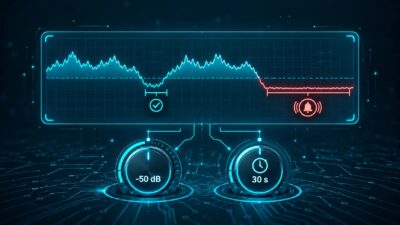
It prints silence_start and silence_end lines when the level stays under -50 dB for at least 10 seconds. Those two numbers depend on your format. Talk radio with long pauses needs different settings than a dance station, and our post on silence detection thresholds without false alarms goes through how to pick them. If you also want buffer and bitrate checks on the Icecast side, the Icecast silence detection guide covers those.
Run that check from a machine outside your streaming setup, and send its alerts through something that does not depend on the streaming server being up.
Where SilenceAlarm fits
SilenceAlarm is one option for that outside check. It connects to the public stream URL the way a listener’s player does, decodes the audio, and alerts you when the stream goes offline or the level stays under your threshold for longer than the duration you set. Alerts go out by email, mobile push, SMS, or webhook depending on the plan. A cron job with ffmpeg on a separate cheap server does the same core job if you prefer to run it yourself.
Whichever you use, test it the way the failure happens. Mute the input on a test mount while the encoder stays connected, then watch which of your checks fires. After that, stop the encoder completely and confirm that listeners land on the fallback and come back when the source returns.